Junior SAP PP consultants often feel confident when they explain concepts like Strategy 10 vs. 40 or MTS vs. MTO in theory. The challenge starts when they apply these ideas in live projects, especially when a business faces overproduction or unexpected stock levels.
This article aims to close that gap. It is based on an internal LeverX workshop, delivered by Engin Kisa, an SAP PP consultant working on manufacturing and engineering projects. Engin shows and explains how make-to-stock in SAP PP behaves in all the details.
Key Takeaways
-
MTS in SAP PP lets manufacturers produce ahead of incoming sales orders, using forecast data.
-
Material master, BOM, routing, work center, and production version form the backbone of MTS, as SAP uses each during MRP and production execution.
-
MRP translates demand into action, checking stock, supply, component needs, and timing before it proposes planned orders.
-
Strategy 10 and strategy 40 serve different MTS scenarios.
-
MTS sits at the intersection of process design, business logic, shop floor execution, and financial impact.
Make-to-Stock vs Make-to-Order: Key Differences
To understand MTS, let’s see the difference between make-to-stock and make-to-order. It begins with a question: Where does demand come from?
In make-to-order, it starts with a sales order. In make-to-stock, demand starts with a forecast. That single distinction changes everything that follows.
Make-to-order (MTO) vs. Make-to-Stock (MTS)
|
Area |
MTS |
MPO |
| Demand source | Forecast (PIR) | Sales order |
| Stock type | Unrestricted | Sales order stock |
| Production trigger | Before sales | After sales |
| Cost collection | Per production order | Per sales order |
| Risk | Inventory risk | Delivery time risk |
What is Make-to-Order
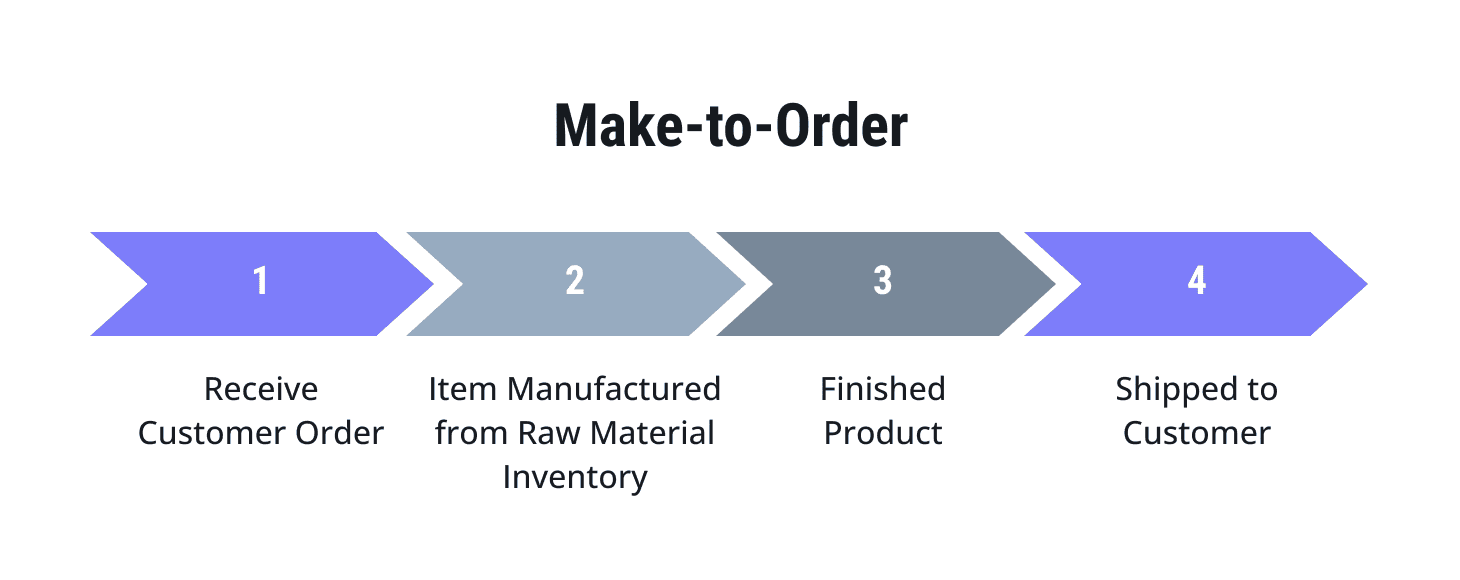
In make-to-order, nothing moves until the order arrives. Materials, capacity, and the final product itself are often reserved for that one order. Planning follows that structure.
Make-to-order uses individual requirements. Each sales order triggers its own calculation. Nothing is shared. Costs follow the sales order. Each customer request carries its own financial story.
 What is Make-to-Stock
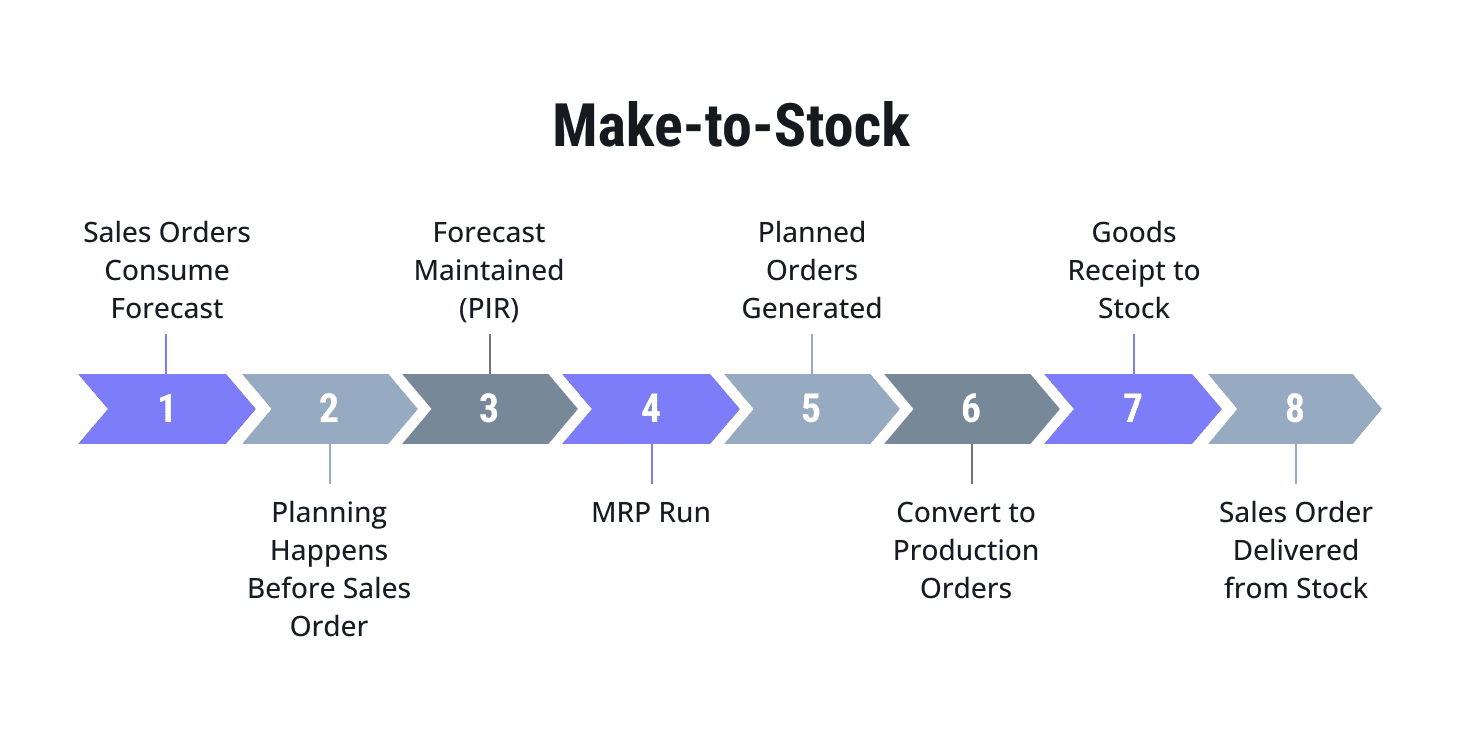
In MTS, planning starts earlier. Here, the company acts before the customer does. Planning starts with a forecast. We define it in the SAP S/4HANA system as a plant-independent requirement (PIR). Those PIRs represent market expectations or past sales order analysis.
Material Requirements Planning (MRP) then reads those requirements, checks current stock and incoming supply, and proposes what the plant should produce and when.
Production fills inventory in advance. That stock remains open, ready to serve any incoming order. Instead of isolating requirements, the system groups them. It plans collectively, smoothing the flow across time. The advantage shows up later, when delivery needs to be fast and predictable.
Both strategies work. Each fits a different business reality:
-
MTS supports speed and availability.
-
MTO supports specificity and order-level control.
The benefits of MTS
A manufacturer that uses MTS can ship faster because finished goods already sit in stock. Sales teams work with greater confidence. Logistics teams plan with more stability. Production teams avoid last-minute chaos. And the business can smooth out workloads instead of panicking when chasing every order.
At the same time, MTS demands discipline. A wrong forecast can fill the warehouse with slow-moving stock, leaving the producer with a high inventory risk. Let’s put this knowledge into the bigger picture.
Production Planning in SAP: Turning Forecasts Into Production
If you want to understand MTS, follow the sequence.
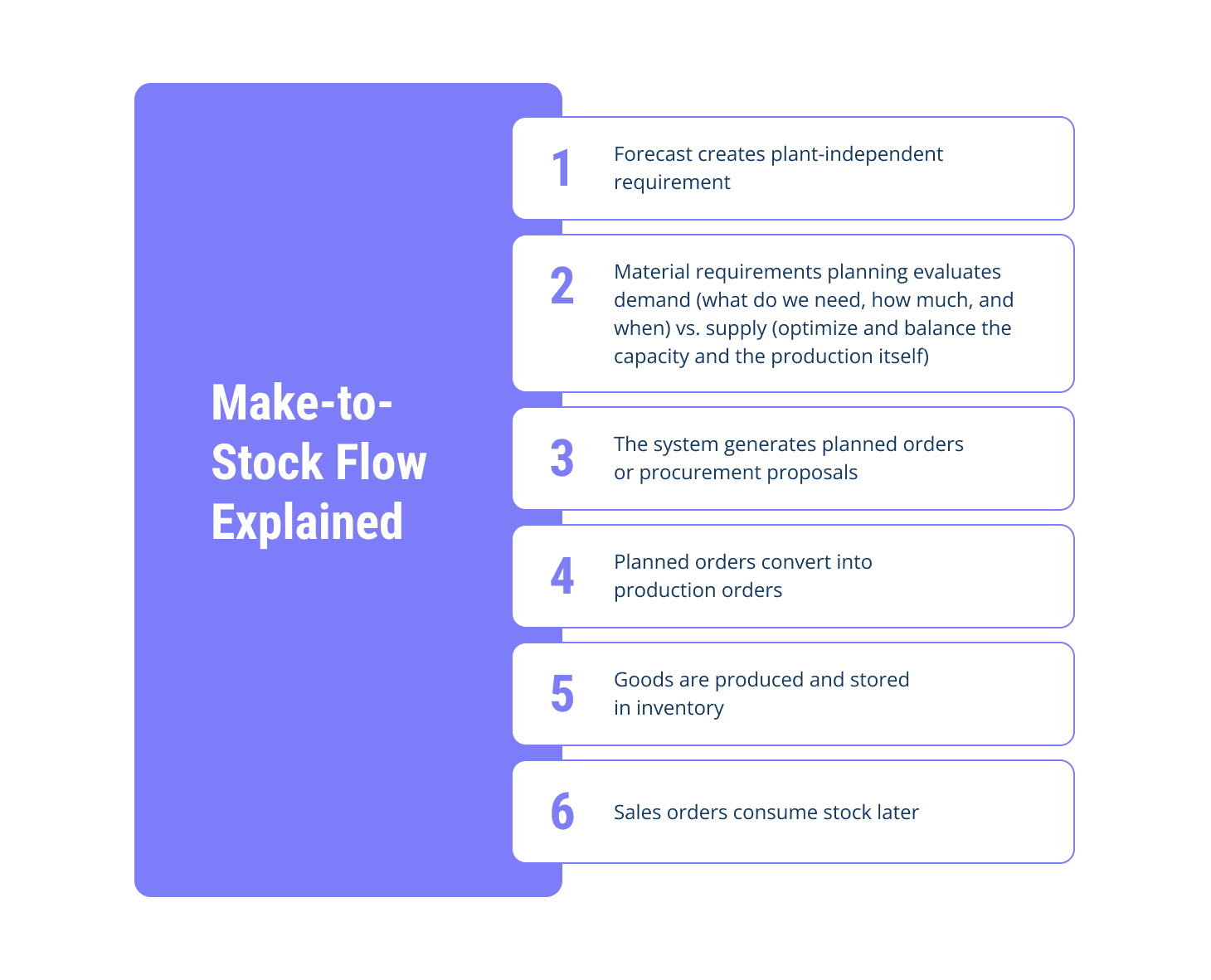
Each step carries business meaning.
Demand management starts the cycle
In MTS, production begins with forecast demand rather than a customer-specific order. In SAP, that forecast enters the system as planned independent requirements. Those requirements represent expected market demand. Why does this matter?
Because the forecast shapes everything downstream. When demand rises, the system plans more. When demand drops, the system slows the supply. When the forecast misses reality, inventory or service levels absorb the damage.
MRP converts expectations into supply proposals
Once requirements are in place, MRP analyzes demand against available stock and existing supply. Then it answers three practical questions:
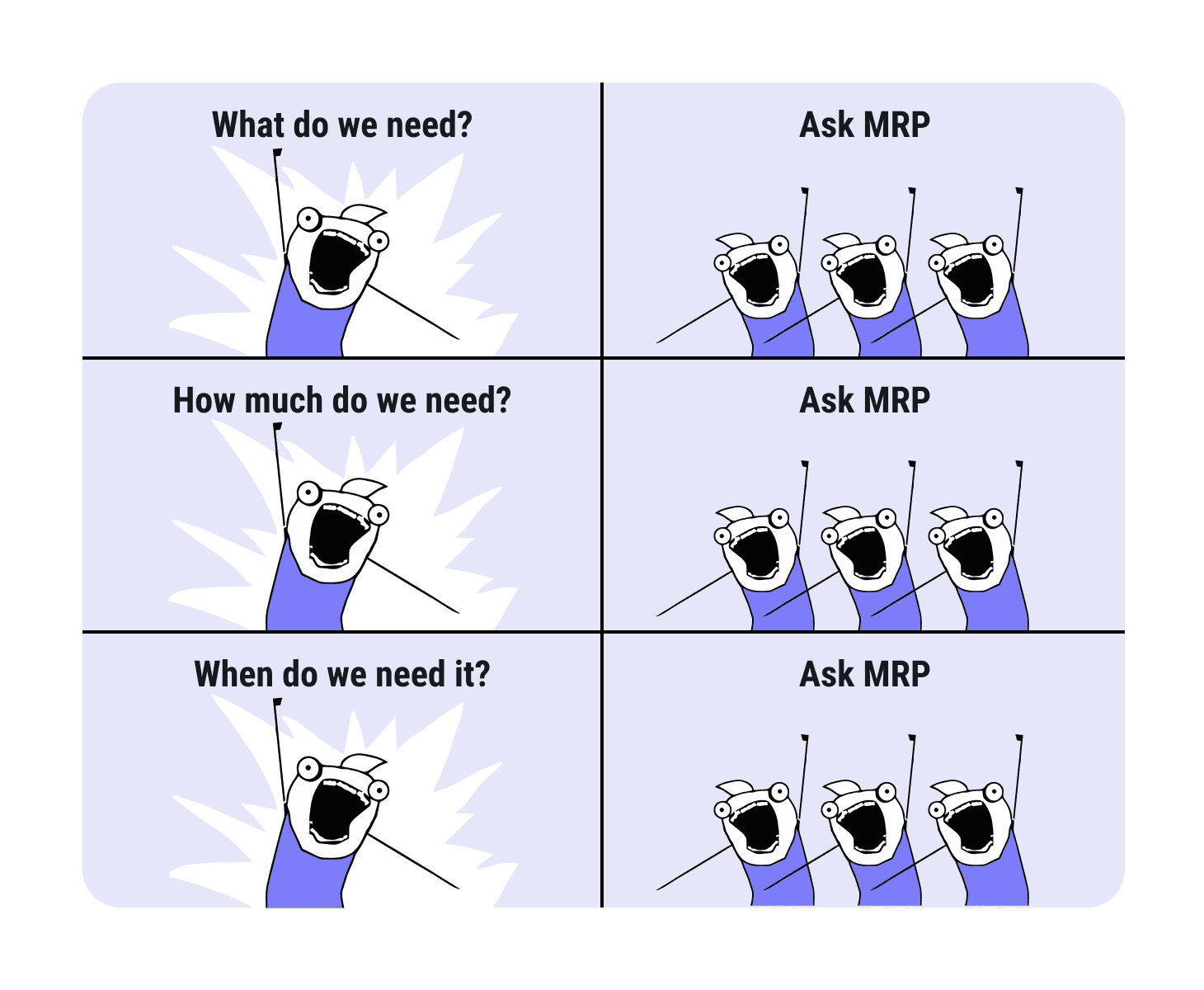
That is where SAP stops feeling abstract and starts feeling operational.
MRP reads material master settings, checks planning strategy, uses procurement type, considers lot-sizing logic, and explodes the BOM to identify component demand. For finished goods, it may create planned orders. For lower-level components, it may trigger procurement proposals or dependent requirements.
Planned orders create flexibility
A planned order gives planners room to review quantity, timing, and sourcing logic before shop floor execution begins.
Businesses revise forecasts. They might see that capacity shifts and component shortages appear. Planners need a document that supports adjustment before the plant commits resources.
Then the process moves forward.
Production orders trigger execution
When a company converts a planned order into a production order and releases it, SAP crosses from planning into execution. The order reserves components, guides operations, captures confirmations and links labor, machine time and materials to cost.
Strategy 10 and Strategy 40 in SAP PP
If there is one place where even experienced consultants hesitate, it is here.
Strategy 10: pure make-to-stock
Strategy 10 is the cleanest form of MTS.
- Planning is fully forecast-driven
- Sales orders arrive later and draw from existing stock
- Sales orders do not directly influence production planning
- MRP reacts only to PIR
This works well in stable demand environments where forecast accuracy is high. But if you did wrong forecast, you produce an overload, and your inventory is full of goods. On the other hand, it allows us to quickly deliver items. But business demand rarely behaves perfectly. That’s why strategy 40 might be better.
Strategy 40: make-to-stock with forecast consumption
Strategy 40 adds more flexibility. The company still plans from forecast, but incoming sales orders can consume forecast quantities within defined time windows. That means the system dynamically adjusts demand.
That matters because it prevents unnecessary overproduction.
Imagine the business forecasts 100 bicycles for next week. Then a real customer order arrives for 40 bicycles in the same period. Under the forecast consumption logic, the sales order consumes part of the forecast. The system adjusts the plan rather than stacking 40 confirmed units on top of 100 forecasted units. Instead of producing 140, we are producing 60 because we initially forecast 100.
When to Use Strategy 10 and When to Use Strategy 40
Most production planning issues arise from incorrect strategy selection. Choose Strategy 10 where Strategy 40 is needed, and you get overproduction and finance complaints.
Choose Strategy 40 without proper configuration, and you get planning inconsistencies and unstable supply proposals.
Use Strategy 10 when:
- Sales orders should not affect planning
- Demand is stable
- Production is fully forecast-driven
Use Strategy 40 when:
- Sales orders should consume the forecast
- A forecast is a planning baseline
- The actual demand must adjust the production plan
Master Data Required for Make-to-Stock
Master data is the backbone of production planning. Without it, processes like MRP, cost calculation, and demand planning cannot function. First, we’ll cover them in theory and then move to practice.
Master Data in SAP PP
| Purpose in SAP PP | Role in MTS | |
| Material Master | Core planning settings | Defines strategy and MRP behavior |
| BOM | Component structure | Used in the MRP explosion |
| Routing | Operation sequence | Used in execution and scheduling |
| Work Center | Capacity and cost | Used for load and costing |
| Production Version | BOM + Routing combination | Required for production order creation |
The material master defines planning behavior
The material master specifies how SAP treats a material. For PP, the most important views include MRP and work scheduling data.
Here, planners define fields such as:
- MRP type
- Planning strategy
- TLot-sizing procedure
- Procurement type
- Individual or collective requirements
These fields influence whether SAP includes a material in planning, whether the business produces or procures it, how MRP groups demand, and how the system behaves under MTS or MTO logic.
In other words, the material master controls decisions.
Bill of material (BOM) defines what you produce
The bill of material tells SAP what the finished product contains. Components, semi-finished goods, and raw materials all appear here with quantities and structure.
That sounds obvious until you remember what MRP does with it.
When demand for a finished bicycle increases, SAP explodes the BOM and determines what that means for wheels, frames, and assemblies. One change at the top ripples through the structure below.
Routing defines how you produce
The BOM tells SAP what the product contains. Routing tells SAP how the plant makes it.
Operations, standard times, and assigned work centers all live here. That gives the system a process path. It also creates the basis for scheduling, labor estimates, machine time, and cost collection.
The work center connects capacity and cost
Work centers define available capacity, formulas, activity types, and cost center links. This matters because every production promise depends on available time. Every production decision also consumes money.
When MRP and scheduling use work center data, the system checks whether the plant can handle the planned workload. When production confirms activity, those same structures support cost visibility.
Production version ties it together
The production version connects BOM and routing into a valid production model.
Without it, order creation can fail. With it, SAP knows which combination of product structure and process path belongs to a specific manufacturing scenario.
If a material has multiple ways to be produced, the production version helps the system distinguish among them. That is a practical concept that candidates often overlook, even though plants use it every day.
Let’s move to the system demo.
Make-to-Stock Process in SAP Step-by-Step
Pre-setup
Before S/4HANA, we used a desktop program that had to be installed on the computer. With S/4HANA, SAP introduced Fiori, a more user-friendly interface. Its tile-based layout makes applications easier to find and use. Because Fiori runs in a web browser, there is no need to install software or manage updates on your computer. You can also access it from tablets and phones. The traditional GUI, however, is still available only on a desktop computer.
Start with Manage Product Master Data. Enter the product number, then press Enter or click the search icon. Open the material record to display its details.
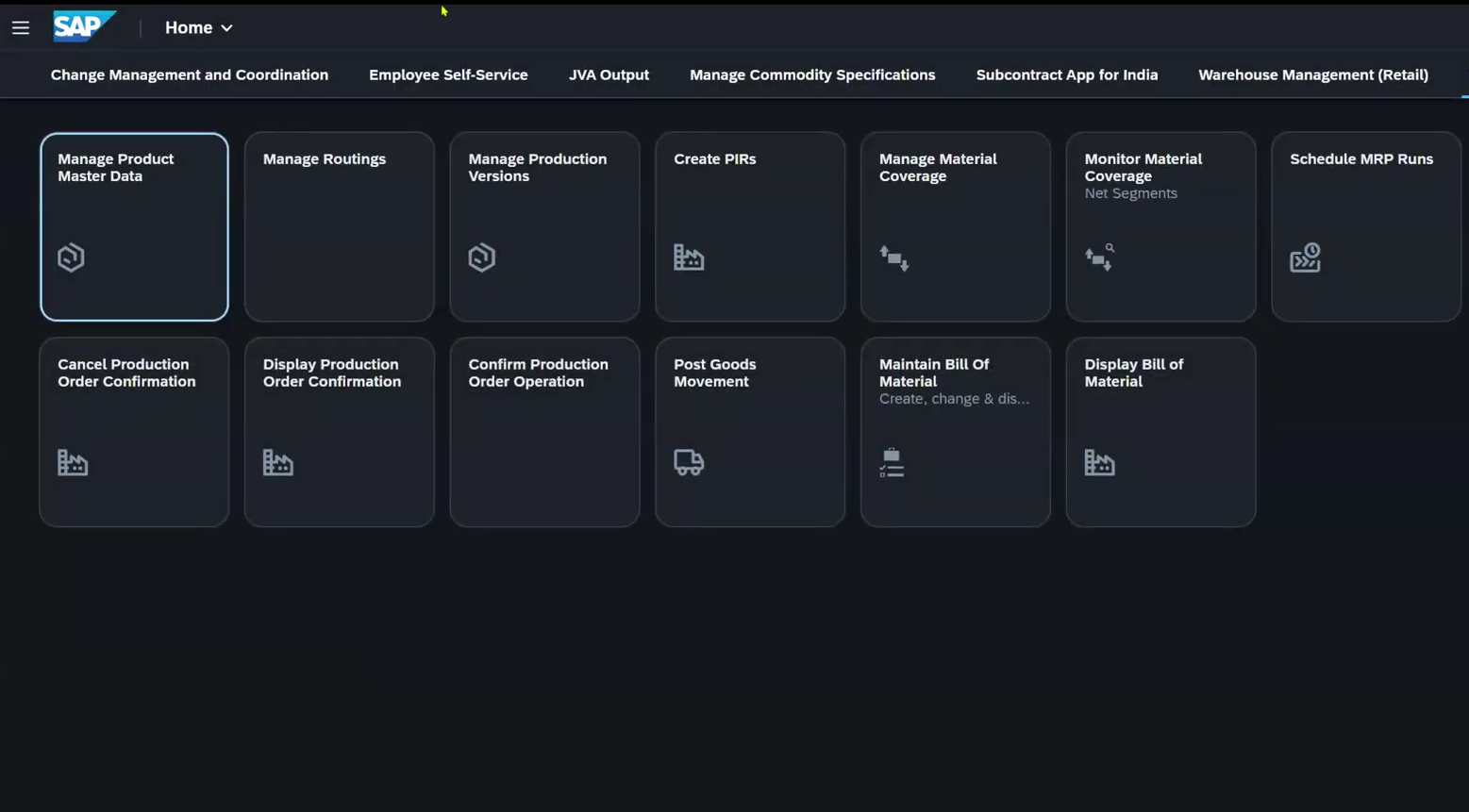
First, orient yourself. The material master contains information for several departments, such as purchasing, sales, and storage. For this task, ignore those areas. Go straight to the plant view, because MRP settings are maintained at the plant level. If you know the organizational structure, you know where to look.
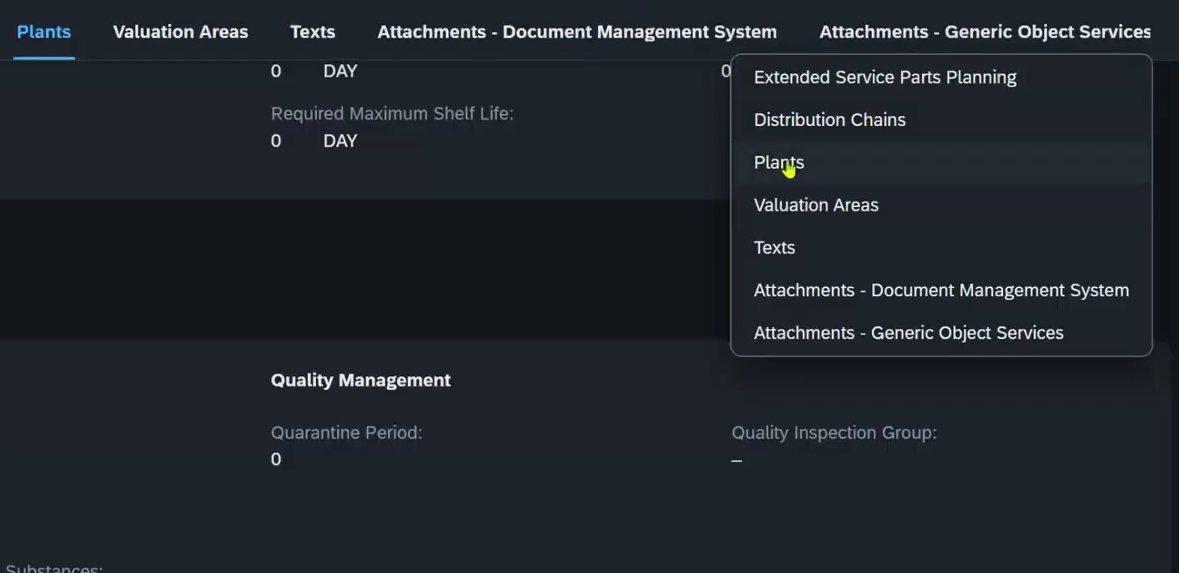
We click on Plant 1000.
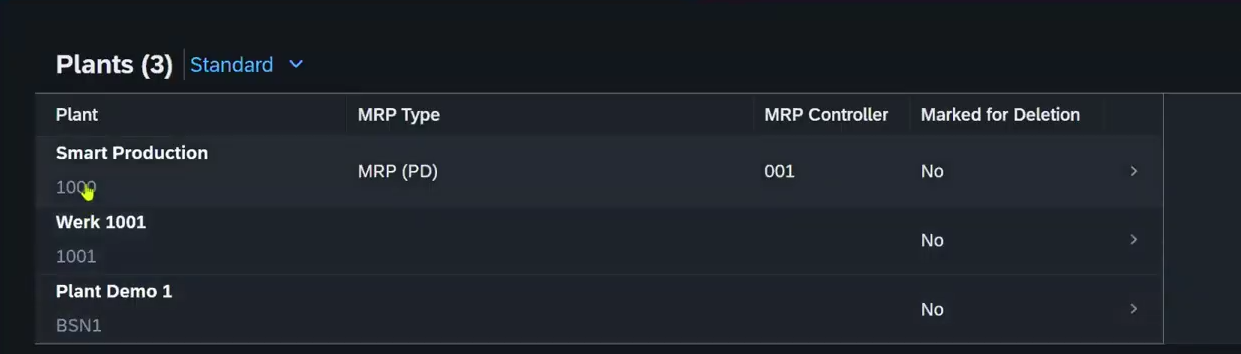
Then we open MRP Data. Begin with the MRP Type field. In this example, it is set to PD. That means the material is included in MRP planning. If a material should not be planned, this is one of the first fields to check.
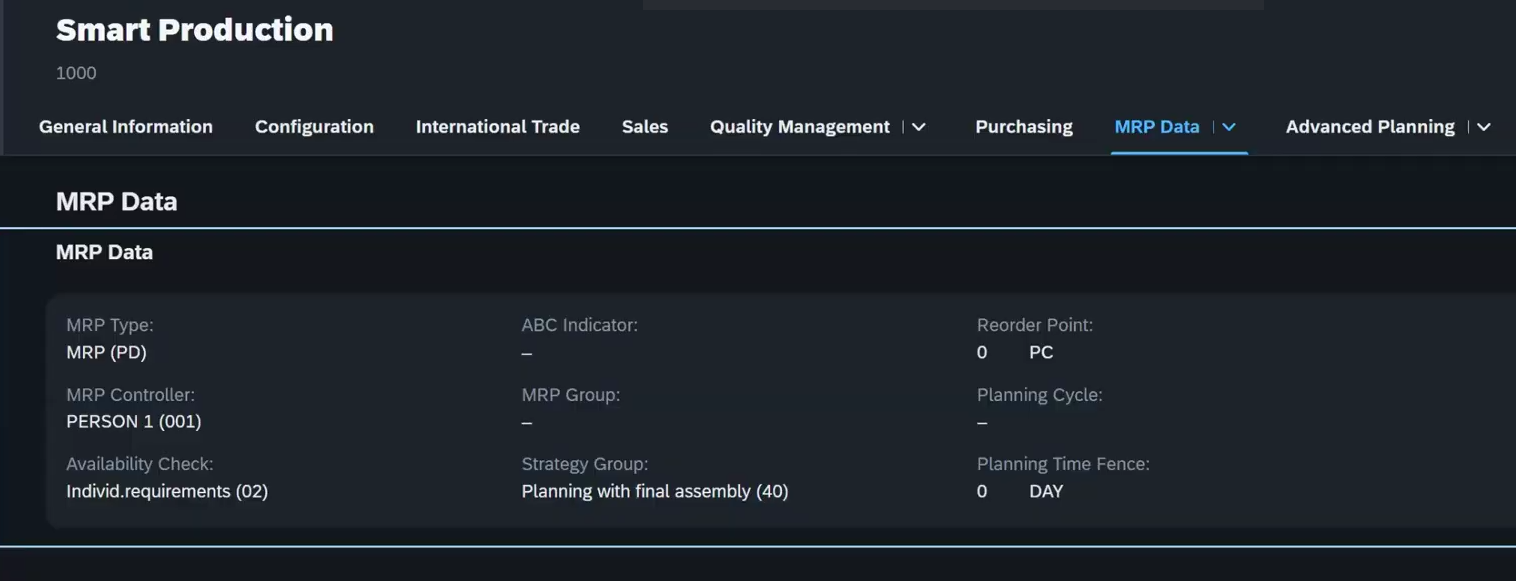
Next, review the MRP Controller. This field identifies the planner responsible for the material. It is useful when planning responsibility is divided across products or material groups.
Then review the requirements setting. In this case, the material is using collective requirements. That means the system groups requirements together for planning purposes, which is typical for make-to-stock. If you were working with make-to-order, you would usually expect a different setup.
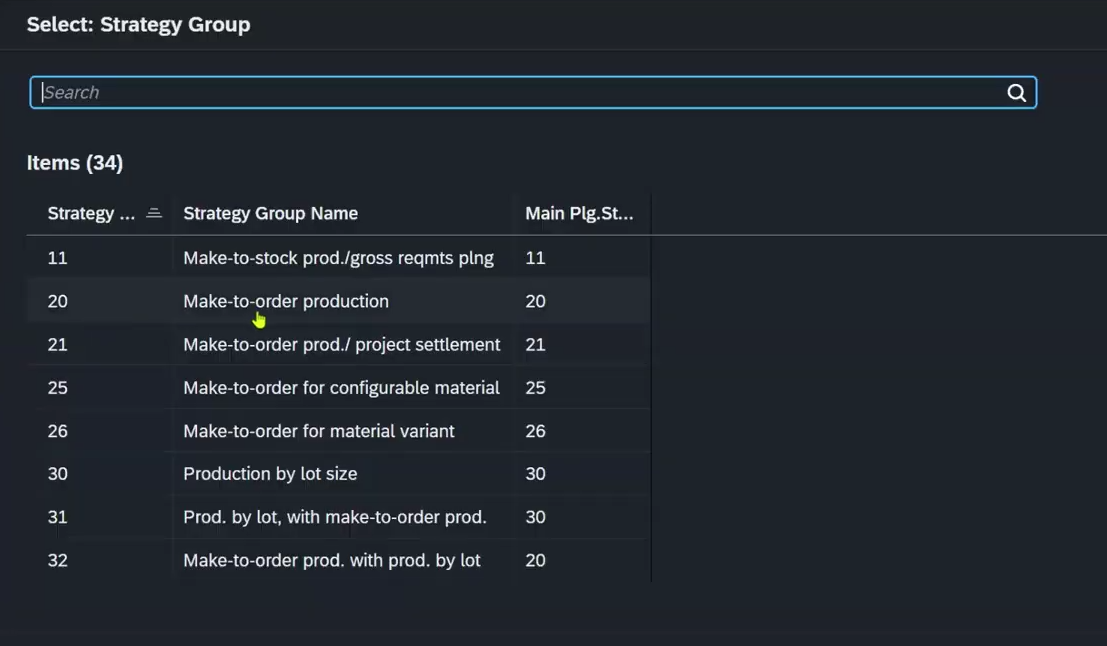
Now move to the Strategy Group. This field tells the system how the material is planned.
Use this as a quick guide:
- Strategy 10 = pure make-to-stock
- Strategy 40 = make-to-stock with sales order consumption
- Strategy 20 = make-to-order
In this example, the strategy is 40. That means production is based on a forecast, but incoming sales orders can consume that forecast. You can see many strategies when you click Edit.
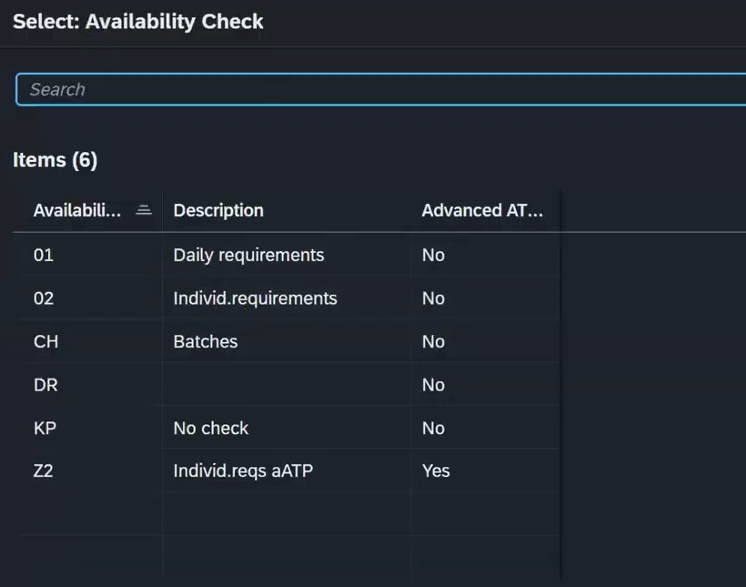
After that, check Availability Check. This setting controls whether the system checks available stock when a sales order is created. It affects how the system reacts to demand in real time.
Then open the detailed MRP fields and review them one by one.
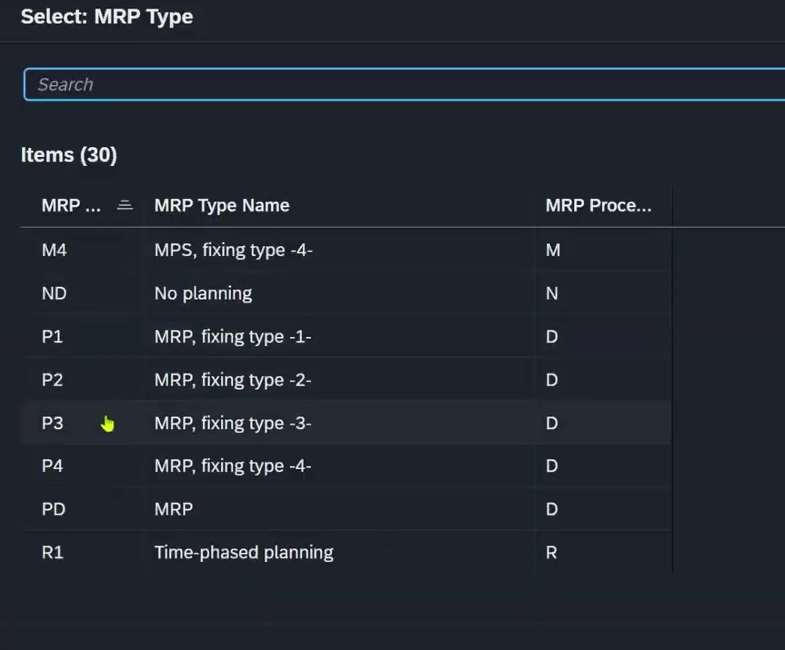
Start again with the MRP Type to confirm that the material is planned. Then check the lot-sizing procedure. If the setting is lot-for-lot, the system creates supply only for the quantity required. If the setting is a fixed lot size, the system creates planned orders in fixed quantities. For example, if the fixed lot size is 200, each planned order will be created for 200 units.
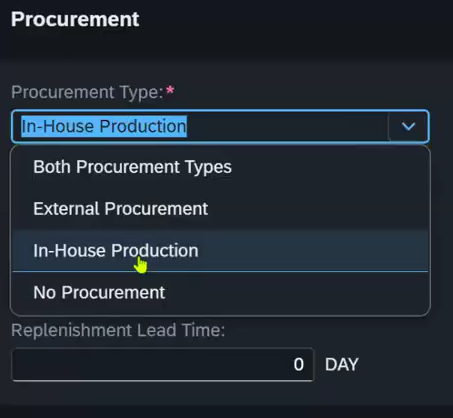
Finally, review the procurement type. This field tells the system whether the material is produced in-house, procured externally, or handled through both methods. In this example, select in-house production.
Bill of Material
Now we are ready to look at the Bill of Material, or BOM.
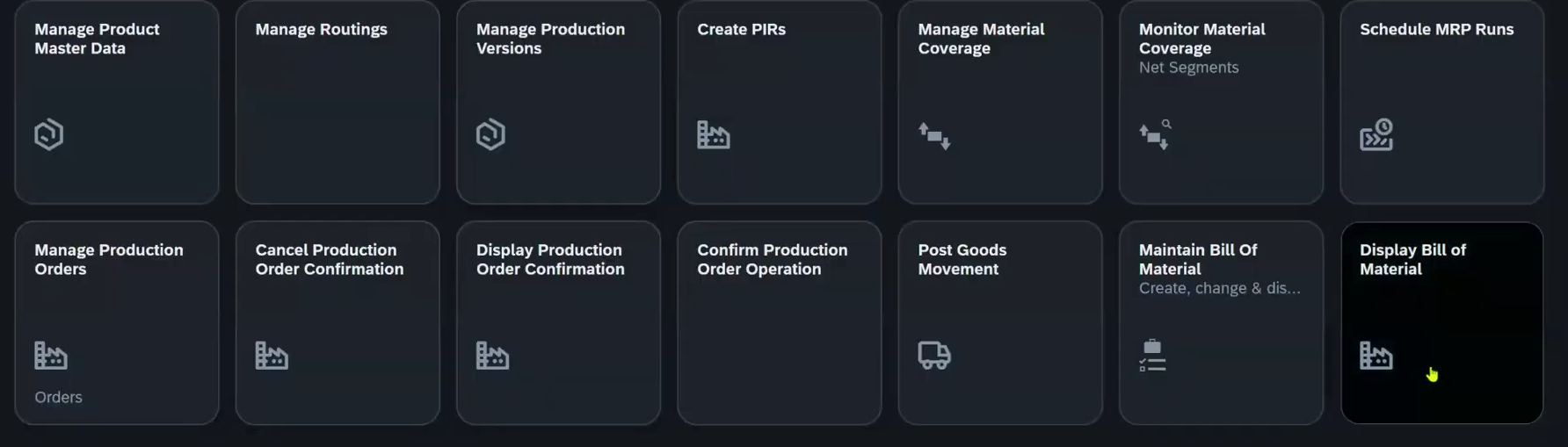
Open Display Bill of Material.
Enter the material number. As with the material master, make sure you are working in the correct plant. Then enter the BOM usage.
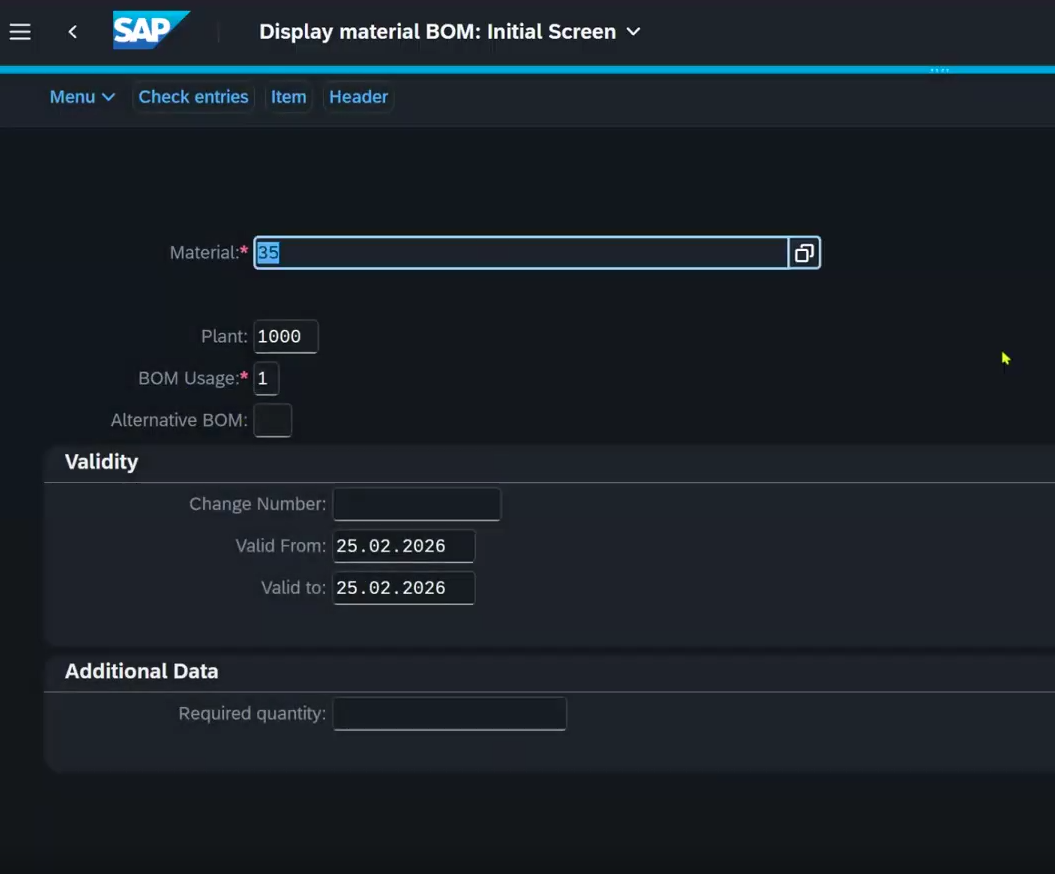
A BOM can exist for different purposes. It can be created for engineering, for design reference, or for production. In this case, we are using the BOM for production. That is why the BOM usage is set to 1, which represents the production BOM.
Once those fields are entered, press Enter.
At this point, the system may show more than one BOM alternative or production version.
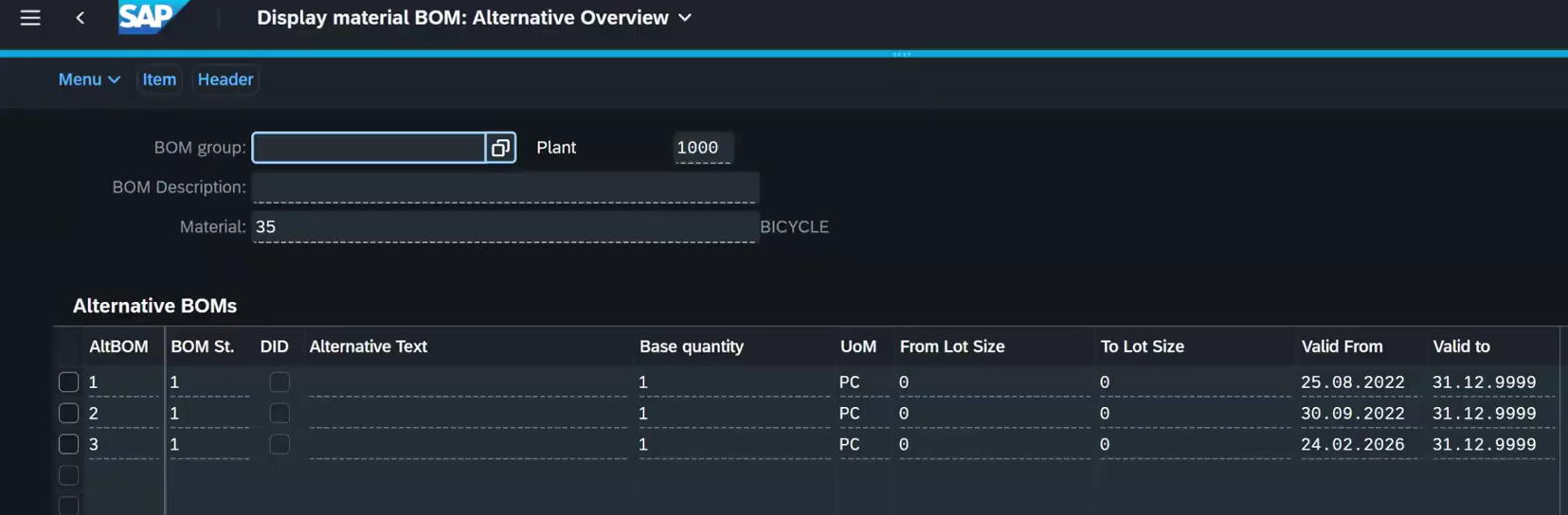
In this example, we are using the third one. Open that version.
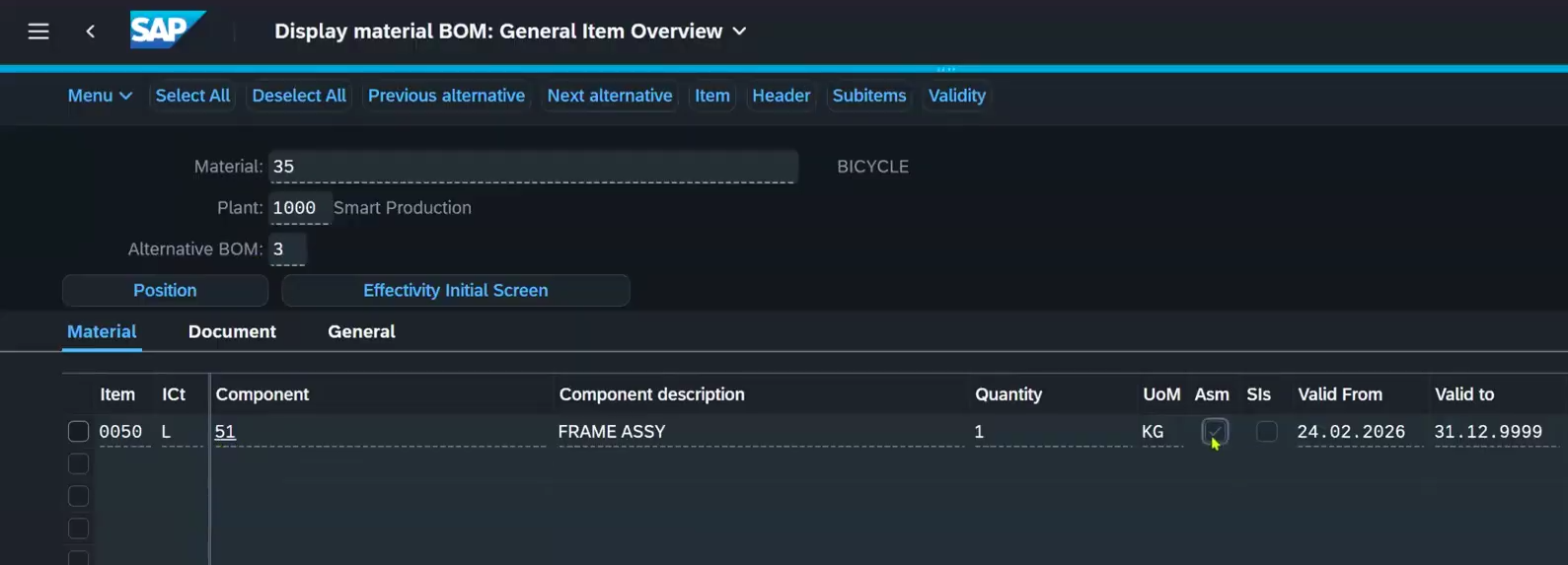
Now read the BOM from the top down.
Start with the first component you see. This is the first level of the structure. At this stage, you are looking at a single-level BOM, which means you see only the components directly assigned to the finished product.
If one of those components is an assembly (Asm checkbox), it is usually a semi-finished good. That matters because a semi-finished good can have its own BOM. To see it, double-click the assembly item. The system will open the BOM for that component.
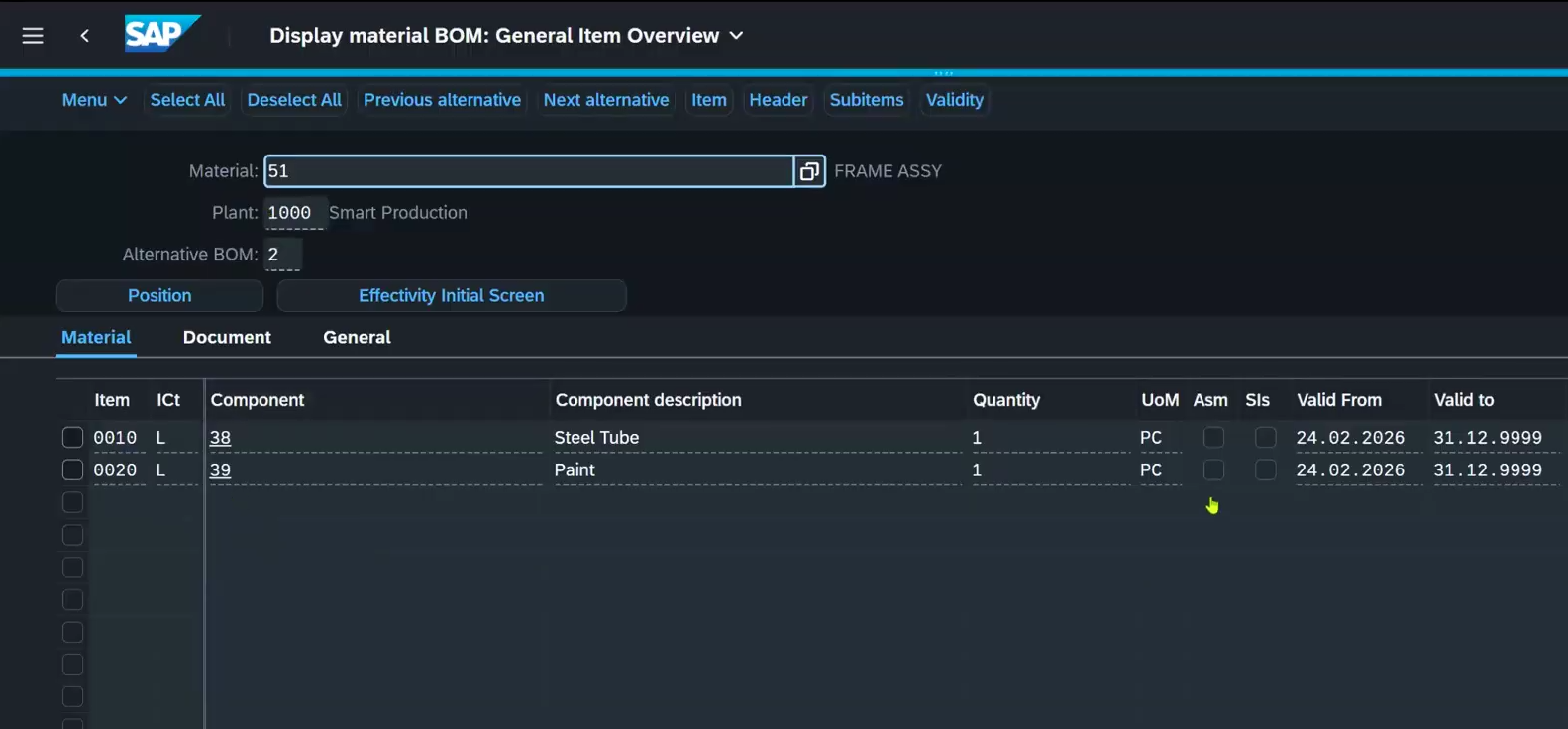
From there, follow the same method:
- Open the next level.
- Check whether that level contains another semi-finished good.
In this way, you move step by step through the structure, from the finished product down to its lower-level components.
Now move to Routing.
Routing and Work Center
Routing is where you define how the product is made.
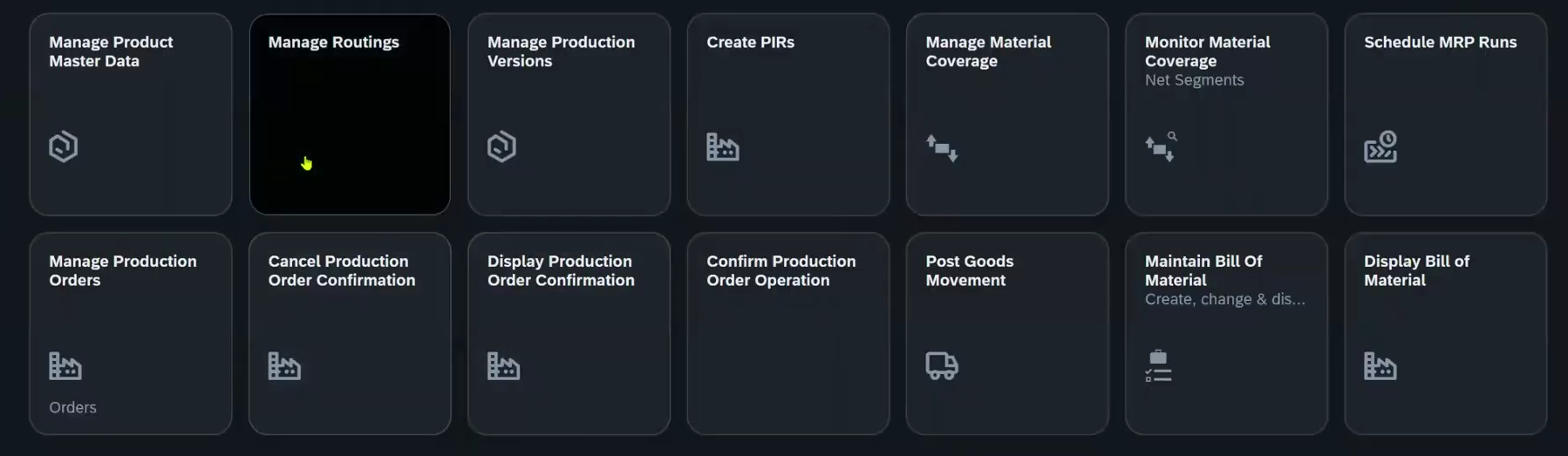
Open Manage Routing, and then Display Routing.
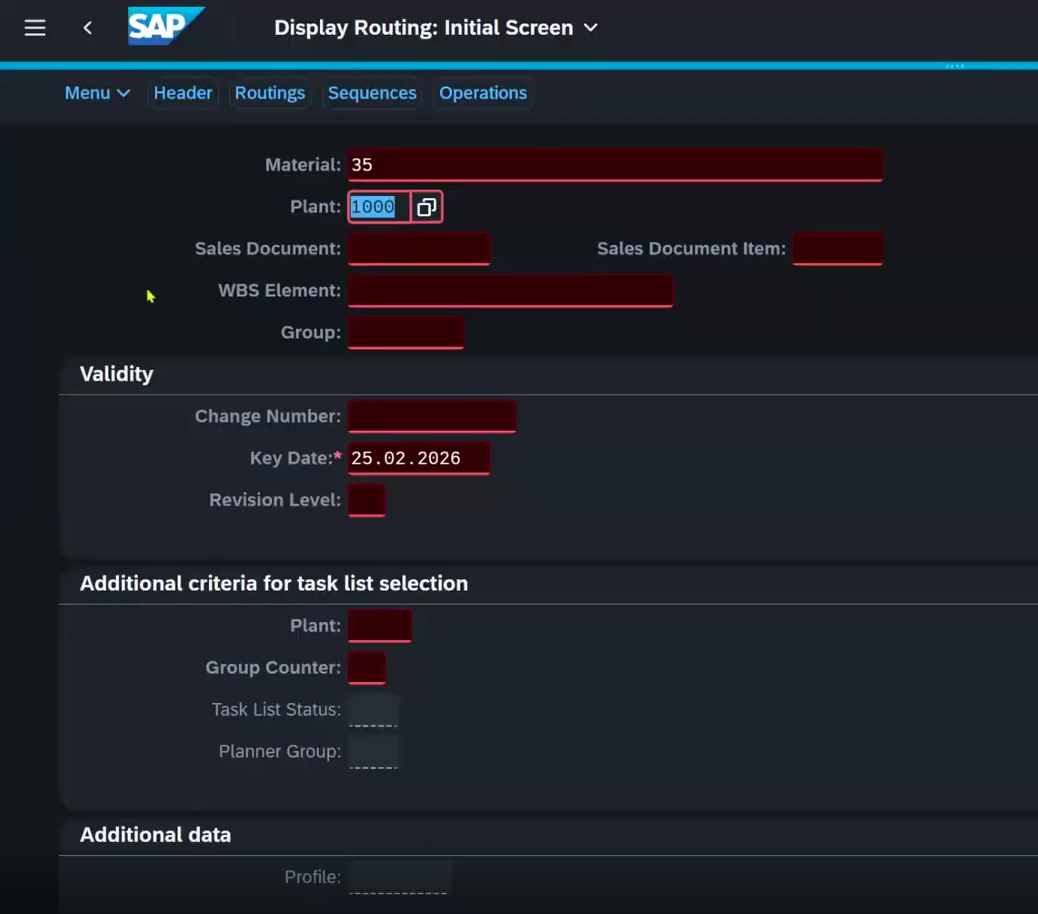
Enter the material and the plant, then press Enter. In this example, use the bicycle material.
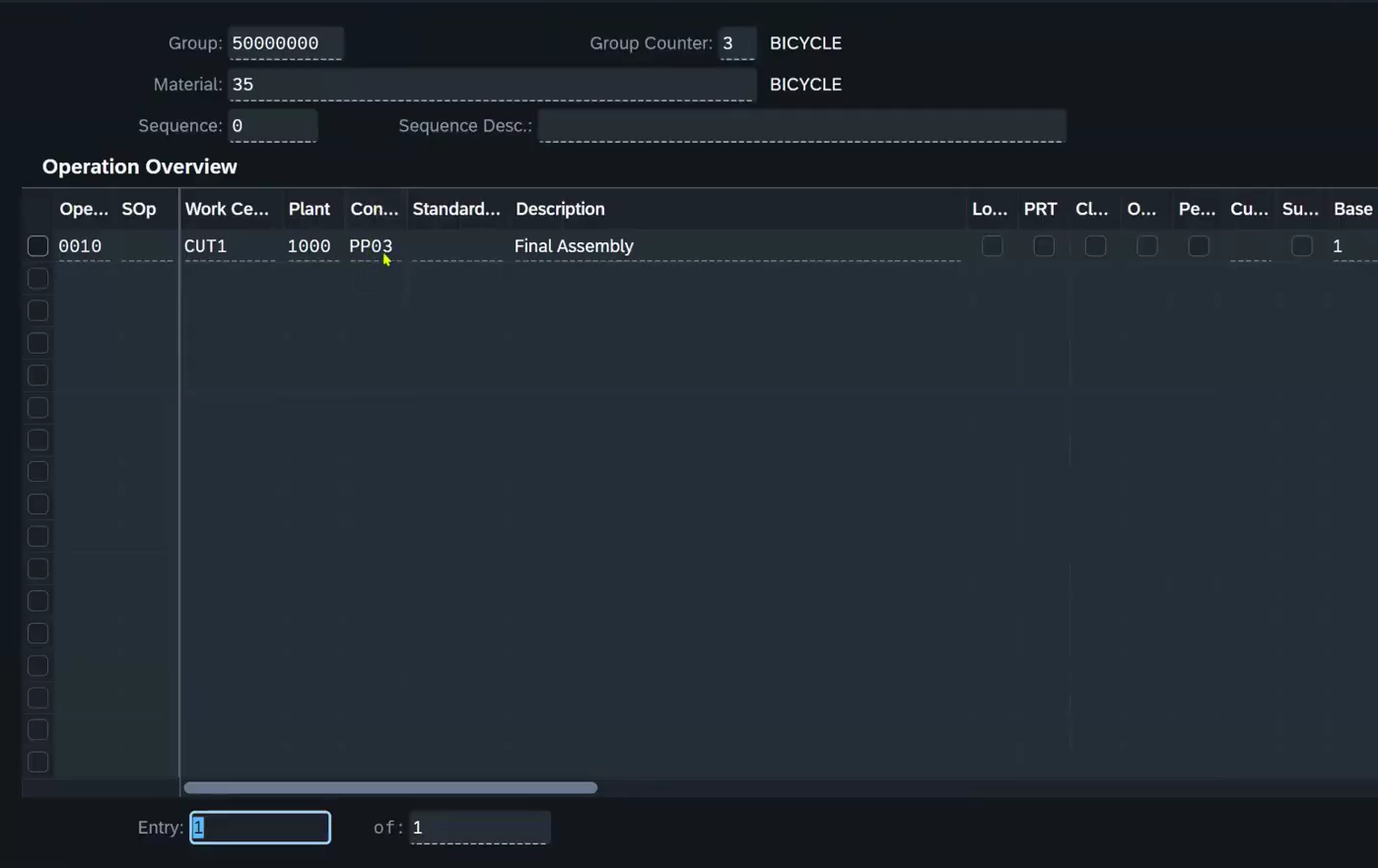
Start by pressing the Consume settings.
Each line represents an operation.
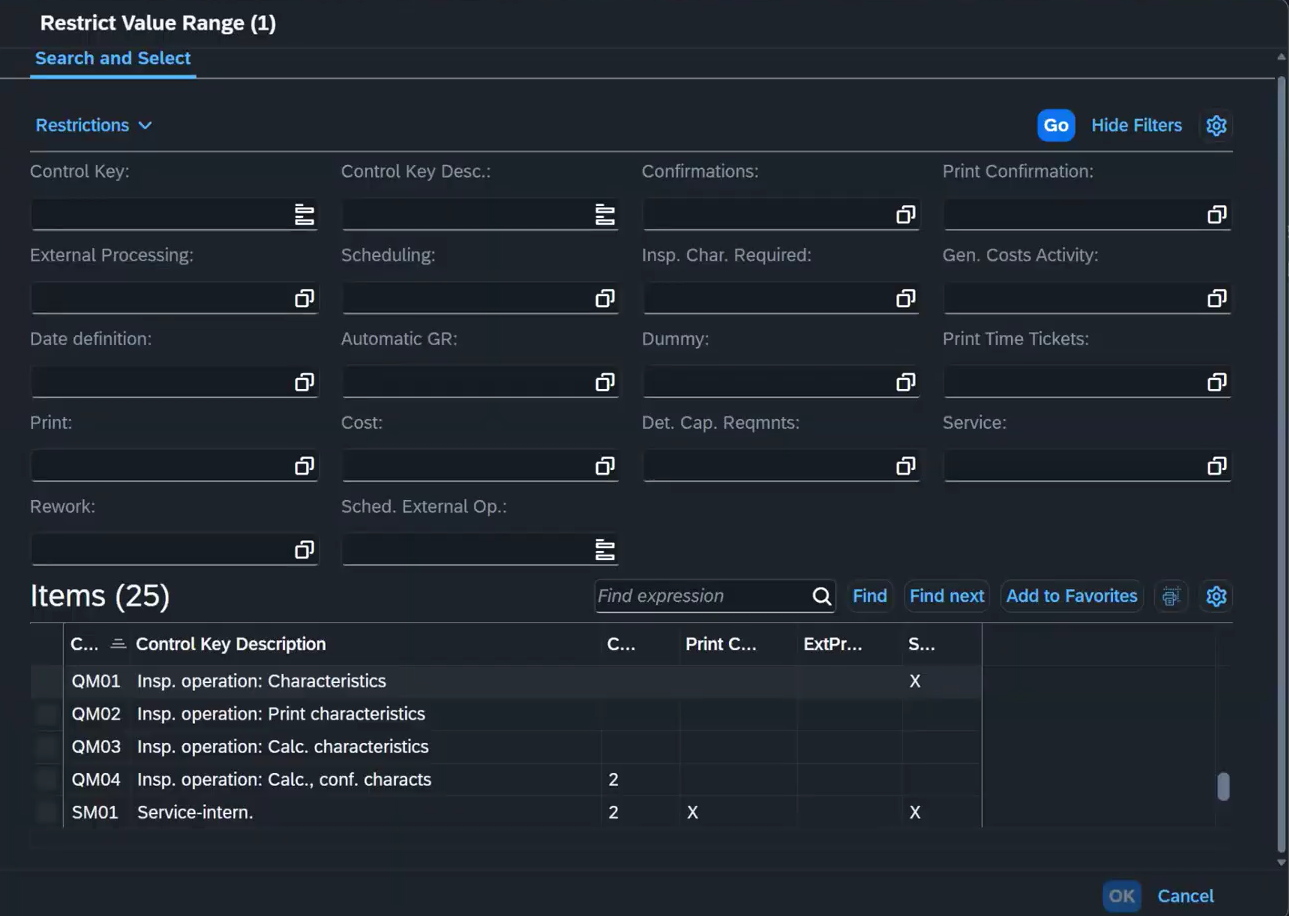
Now look at the activity times. You will see values such as:

- Setup time
- Machine time
- Labor time
These values are not defined in the routing itself. They come from the work center. To understand them, open the work center.
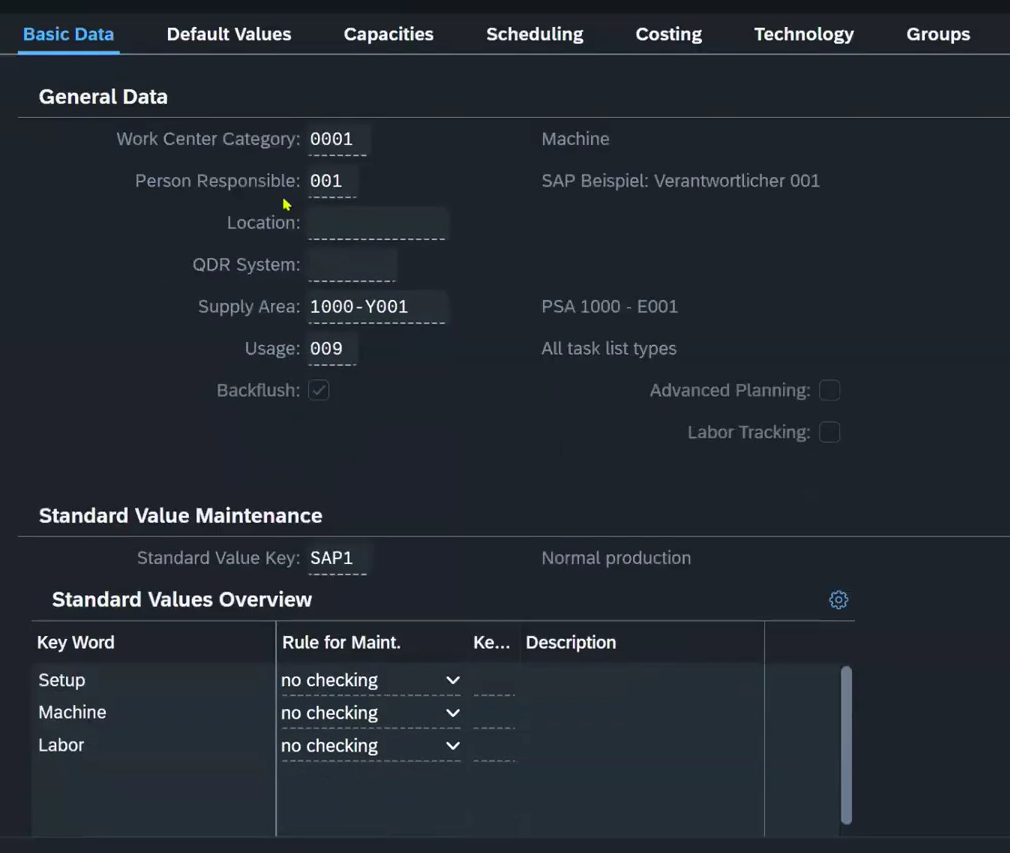
Double-click the work center assigned to the operation.
Inside the work center, review the following:
- Activity Types. These define what kind of work is performed. For example: setup, machine, or labor. Each activity has a unit, such as minutes.
- Capacity Data. This shows when the work center is available. In this example, the work center operates from 8 AM to 5 PM, with a defined break.
- Formulas. These determine how capacity and time are calculated. Standard formulas are available, but they can be adjusted if needed.
- Cost Center Assignment. Each work center is linked to a cost center. This is important because production activities generate costs. The system uses this link for cost calculation and controlling.
You have already reviewed the Bill of Material and the Routing. The next step is to link them. This is done through the Production Version.
Production Version
Open Production Version. Enter the material and the plant.
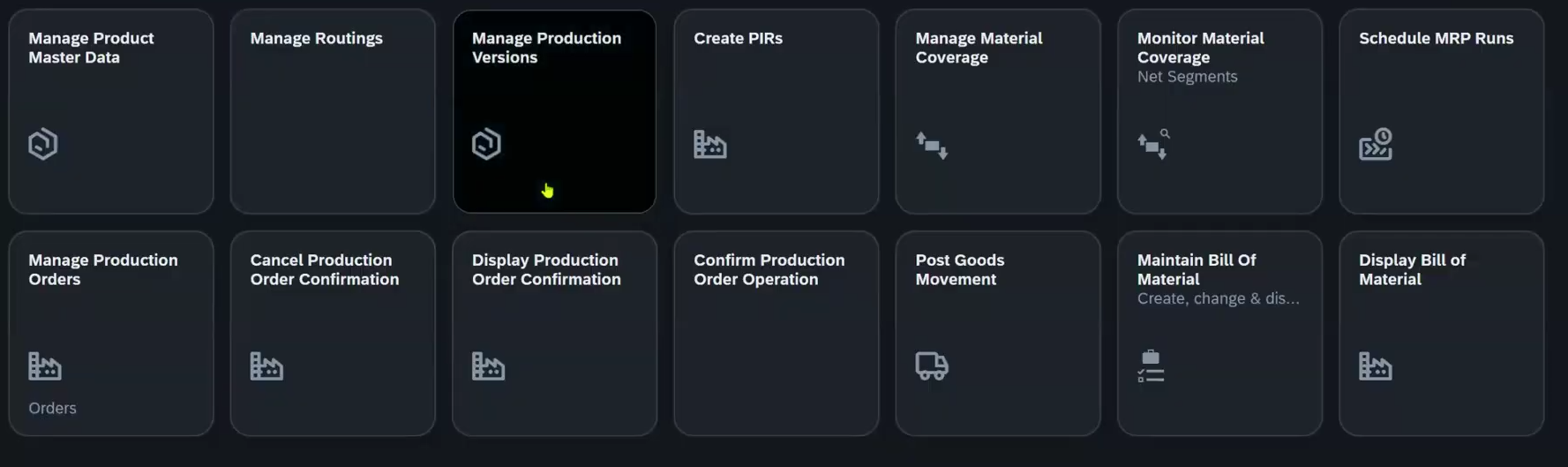
Put your material again. In our case, these are bicycles. You may see more than one production version for the same material.
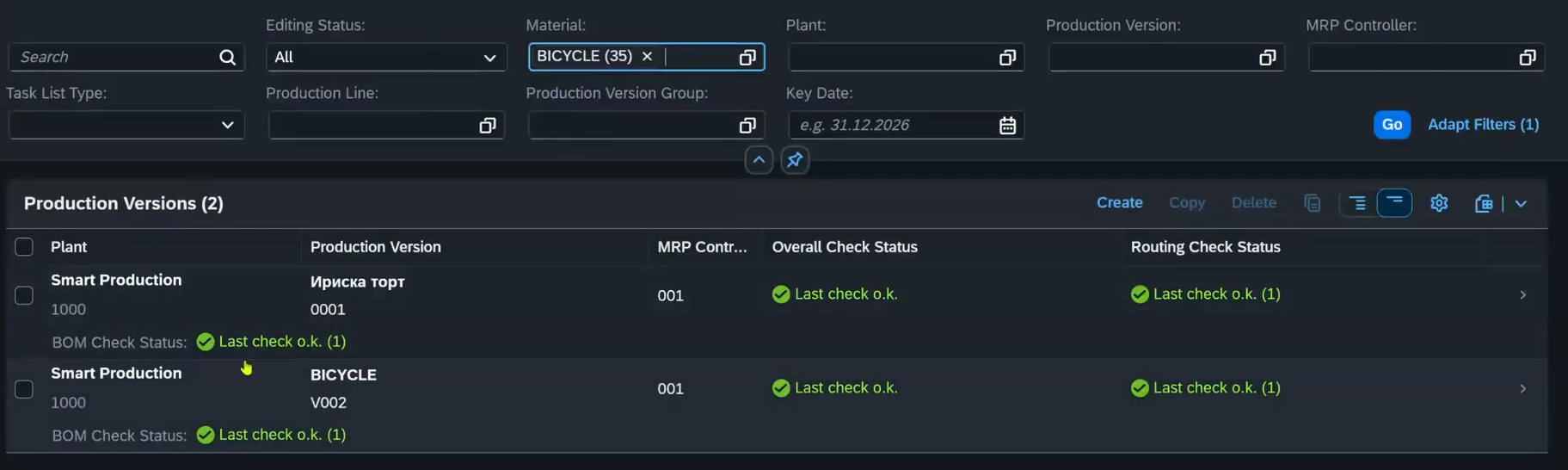
Select the version used in your example.
Now define your routing and your bill of material inside the production version.
After that, the production version system will check this bill of material and this routing is valid. That means it does not directly accept what you are writing here.
There is a Check button in the upper right corner. When you click it, the system verifies the setup. It checks the routing and the selected bill of material. If both are valid in S/4HANA, the system confirms this with a check mark and status messages. These messages show that the task list exists and the bill of material exists. Once you see this confirmation, you can save the production version.
Creating Demand with PIRs
Now create demand.
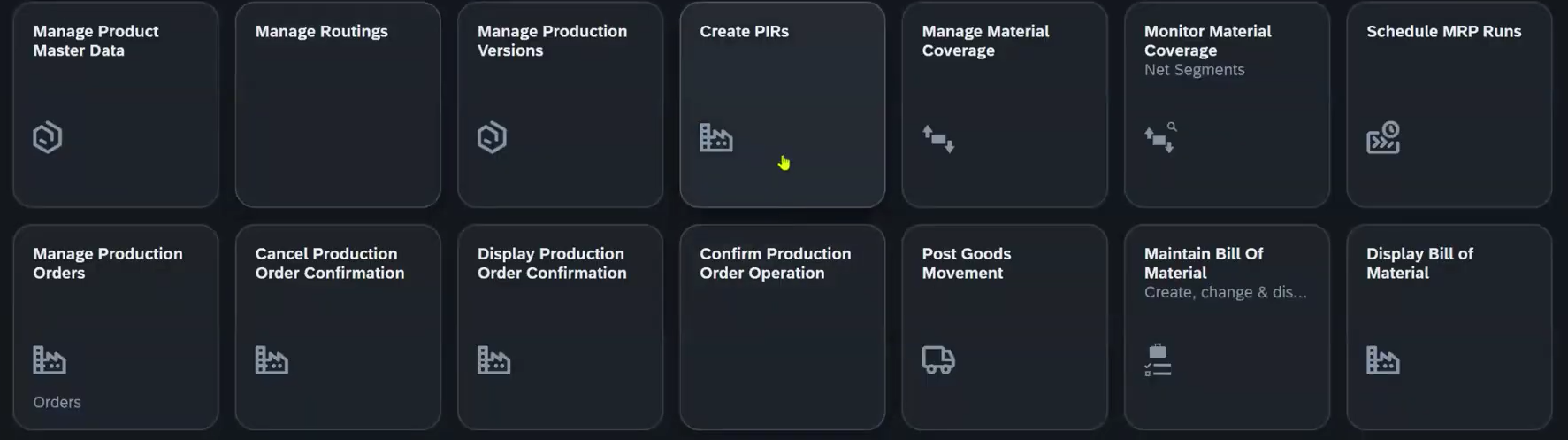
Open Manage Independent Requirements (PIRs).
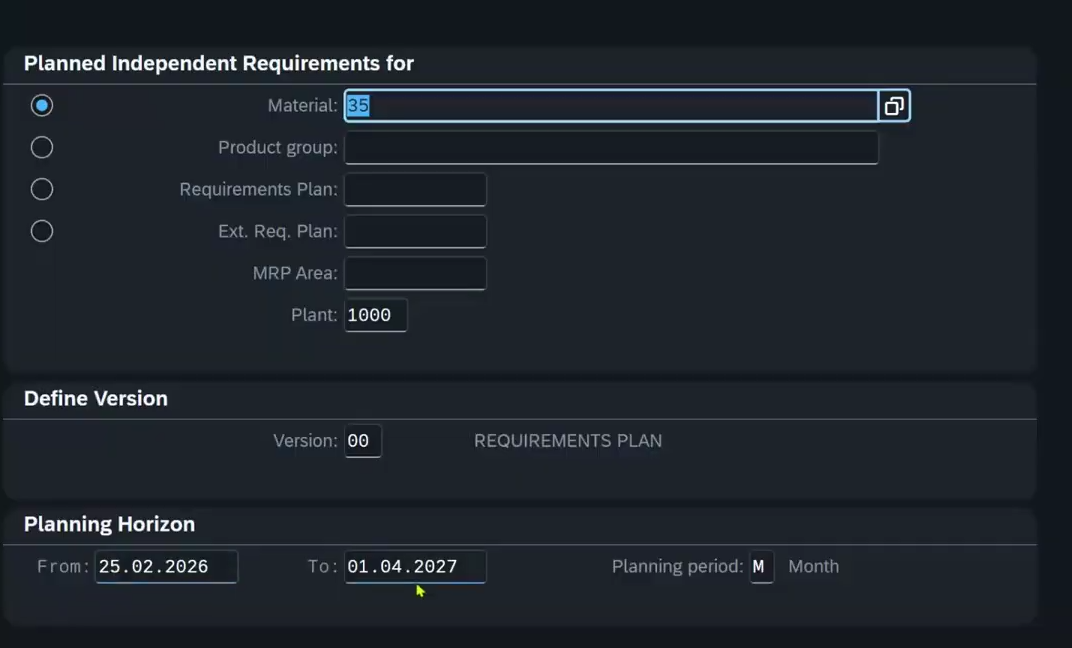
Enter:
- The material
- The plant
Remember that the same material can exist in different plants. Always confirm you are in the correct one.
Before entering values, define the planning horizon. You can choose:
- Daily view
- Monthly view
- Period view
In this example, use a monthly view.
Material Coverage Check
Now check the second material, the semi-finished good.
Let's check our current material situation.
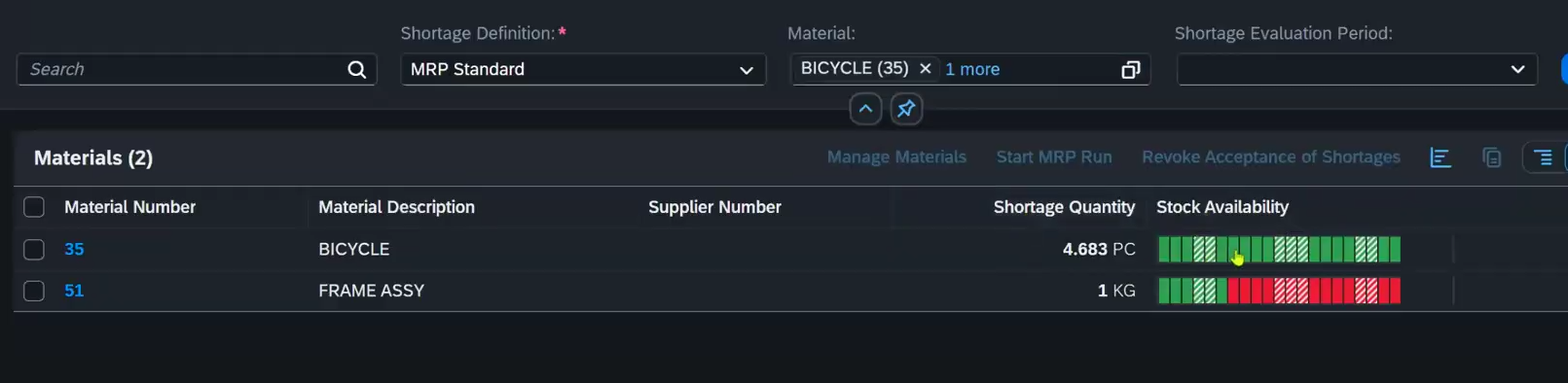
Open Manage Material Coverage. Enter your material and display the data.
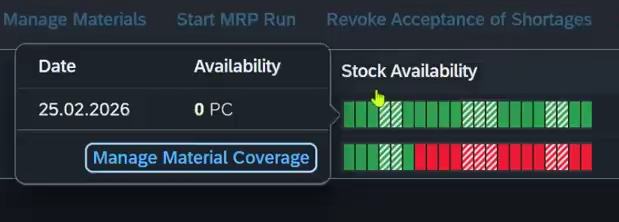
This screen shows:
- Demand
- Available stock
- Shortages
Open the stock availability view for details.
You will see:
- Independent requirements (from PRRs)
- Planned orders created by the system
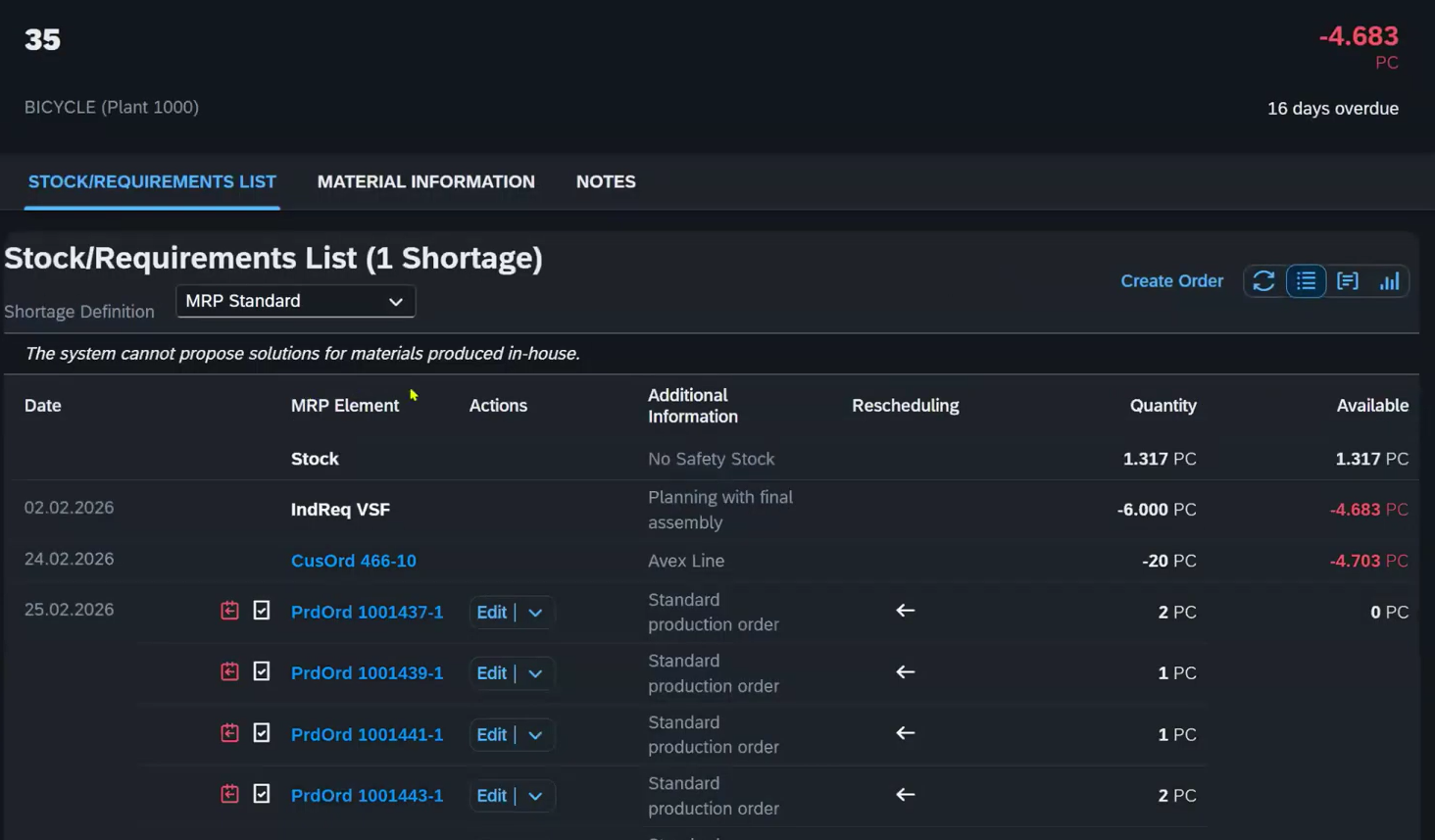
If demand exceeds stock, the system creates planned orders. These are proposals to cover the shortage.
Check the balance. At the end, the system should match supply with demand.
Now check a lower-level material.
You will notice many independent requirements, but you can see the dependent reservation. These come from higher-level materials. For example, a semi-finished component is required because it is part of the finished product BOM.
Now go back and adjust the demand.
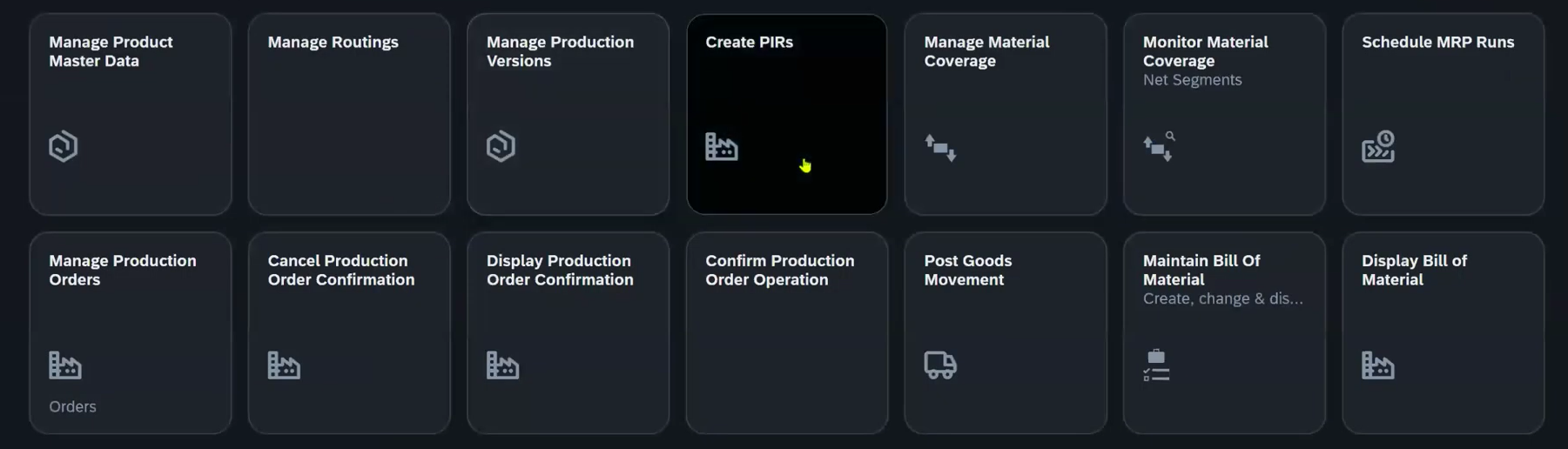
Open the PIR screen and click the Material raw.
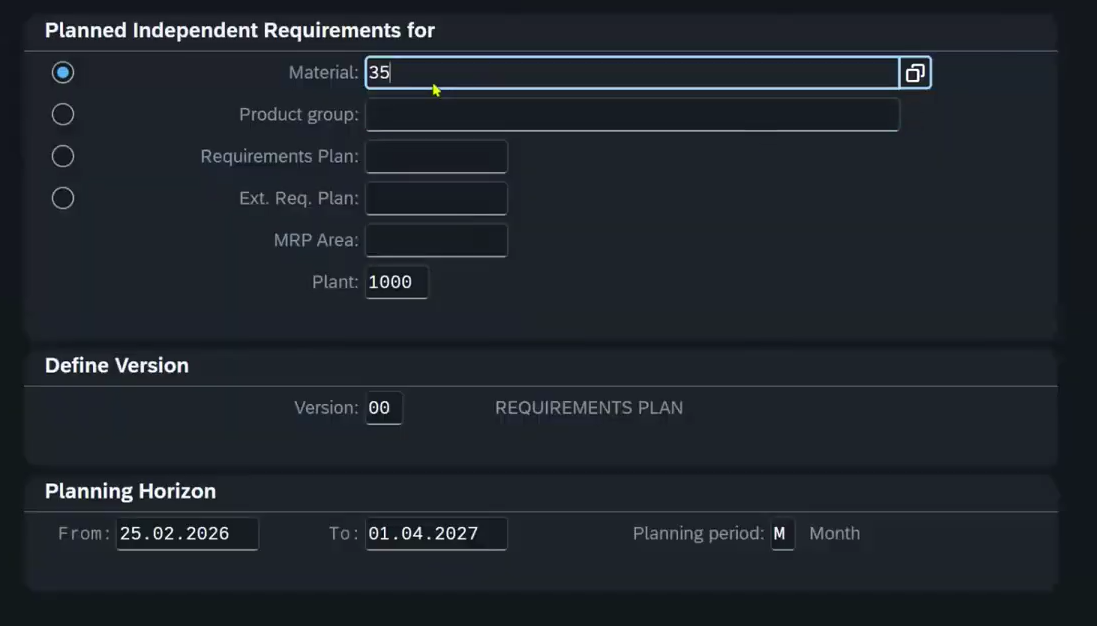
Then change the forecast values. For example, enter:
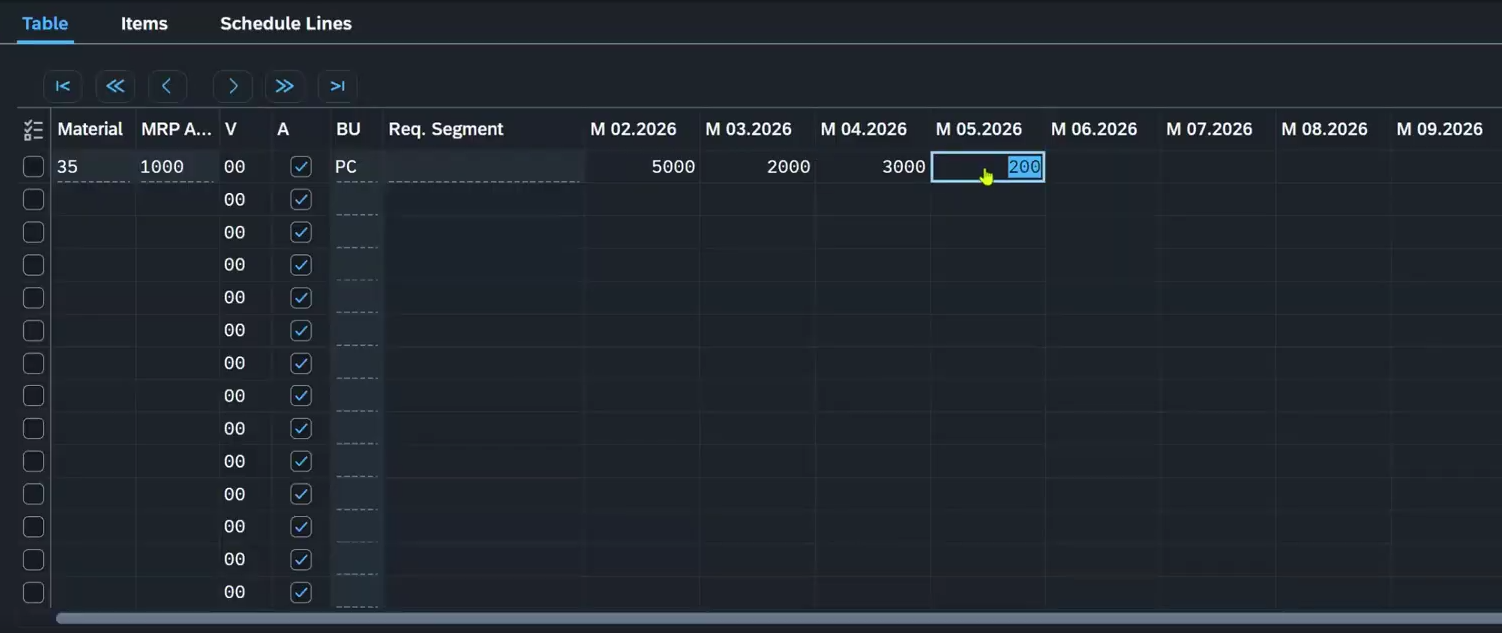
Save the data.
At this point, you have updated the independent requirements. The system now needs to recalculate the plan. That is the role of MRP.
Start the MRP run.
You can run MRP directly or schedule it.
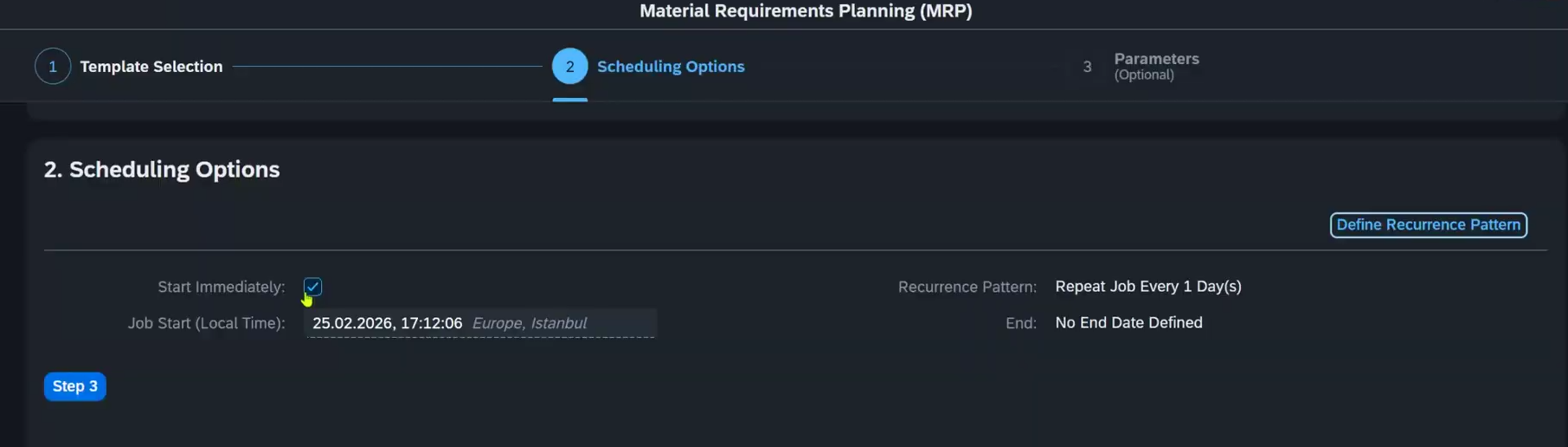
For this example, run it immediately.
Now review the planning mode. This setting controls how the system handles existing data:
- Adjust existing planned orders
- Delete and recreate planning data
- Recreate everything, including production proposals
Choose the option that fits your scenario. If you want a full refresh, select the option to recreate planning data.
Then click Check to validate your entries. Make sure the correct material is selected. If needed, correct it.
Finally, click Schedule.
The system will run MRP and update the planning situation. You can also review previous MRP runs in the log.
Why Make-to-Stock Matters More Than It First Appears
Make-to-Stock is often introduced as a basic planning strategy. In reality, it is a foundation of manufacturing execution in SAP. If you keep it as a theory, you will struggle in projects.
If you practice it as a system of interconnected decisions, you will understand:
- Why did the sales order not consume the forecast?
- Why does planning fail?
- Why does a business still have excess stock even though demand looks stable?
If you want to grow in SAP PP, study MTS as a real business model, not just a configuration topic. That is how to strengthen your professional SAP profile.
Frequently Asked Questions (FAQ)
What is SAP PP?
SAP PP is the Production Planning module in SAP. In make-to-stock scenarios, it helps companies plan production based on forecast demand, convert requirements into planned orders, and execute manufacturing before customer orders arrive.
What is PIR in SAP PP?
PIR (Planned Independent Requirement) is a forecast demand in SAP PP.
It represents expected future demand not tied to a specific sales order. PIRs are mainly used in make-to-stock (MTS) scenarios and drive MRP planning
Share this article


.png)